I’ve been using Bricks Builder for around three years now. Actually, I started using this page builder because of this website. My old site was built with Next.js, a React framework. So yeah, everything was custom coded. I built the whole thing myself.
But here’s the problem. I was spending too much time coding and not enough time actually running my freelance business. Every new landing page meant writing code. Every SEO update meant writing more code. And I was doing this while trying to take on client work and create content.
It wasn’t sustainable. I needed something that let me move faster without giving up control over how things looked and worked.
That’s why I switched to WordPress again, and this time I’ve chosen Bricks as my page builder.
So What Exactly Is This WordPress Page Builder?
Bricks is not like other WordPress page builders. If you’ve used Elementor or Divi before, you might think it’s the same thing. It is, in a way. They’re all visual builders. But how they work is completely different.
Most WordPress page builders try to hide the technical stuff from you. Bricks takes a different approach. It gives you a visual way to work, but it’s more like writing HTML & CSS through an interface.
You’re still making the same decisions a developer would make. You’re still thinking about flexbox, grid layouts, padding, margins, and all that stuff. But instead of typing it out in a code editor, you’re clicking buttons and filling in boxes.
When you add space around something, you’re basically setting margins and padding. When you adjust text styles, you’re working with real styling stuff like font sizes and line spacing. The builder shows you what’s happening, but it doesn’t really hide what’s going on under the hood.
This is why I think it might feel overwhelming if you’re not into technical things. If words like “flexbox” or “grid” sound confusing, Bricks might not be the most fun experience. But if those things make sense to you (or you want to learn them), you’ll probably enjoy how much control you get.
Why I Think This Is One of the Best Page Builders for WordPress Developers
There are tons of WordPress page builders out there, but let me walk you through what makes Bricks stand out for me and why it’s become one of my most-used website builders.
Dynamic Data
Okay, this is actually one my favorite feature of Bricks. You can easily pull data from pretty much anywhere in WordPress and display it however you want. Custom post types, custom fields, user information, all that stuff. This is actually the main reason I switched my own site from Next.js to Bricks. The way it handles dynamic data just clicked for me.
If you look at their documentation, there’s a whole list of predefined dynamic tags you can use right out of the box. And it works really well with popular custom field plugins like ACF, Pods, and Metabox, which I use pretty often. Once you understand how it works, you can build some pretty cool stuff without writing custom PHP queries every time.
I remember when I was building the private portfolio of Post & Play, I needed to pull in some pretty specific custom field data and display it in different ways across the site. With Bricks’ dynamic data system, it was way more straightforward than I expected. I didn’t have to fight with it.
For me, this feature alone makes Bricks worth considering. If you work with custom post types and custom fields regularly, you’ll probably find yourself using this constantly.
Clean HTML Markup
This is something you might not notice right away, but it’s actually one of the things I really appreciate about Bricks. It follows the WYSIWYG (What You See Is What You Get) principle pretty seriously. Let me show you what I mean.
I’ve got two images below. One shows how Elementor renders a simple piece of text on the front end. The other shows how Bricks does it.
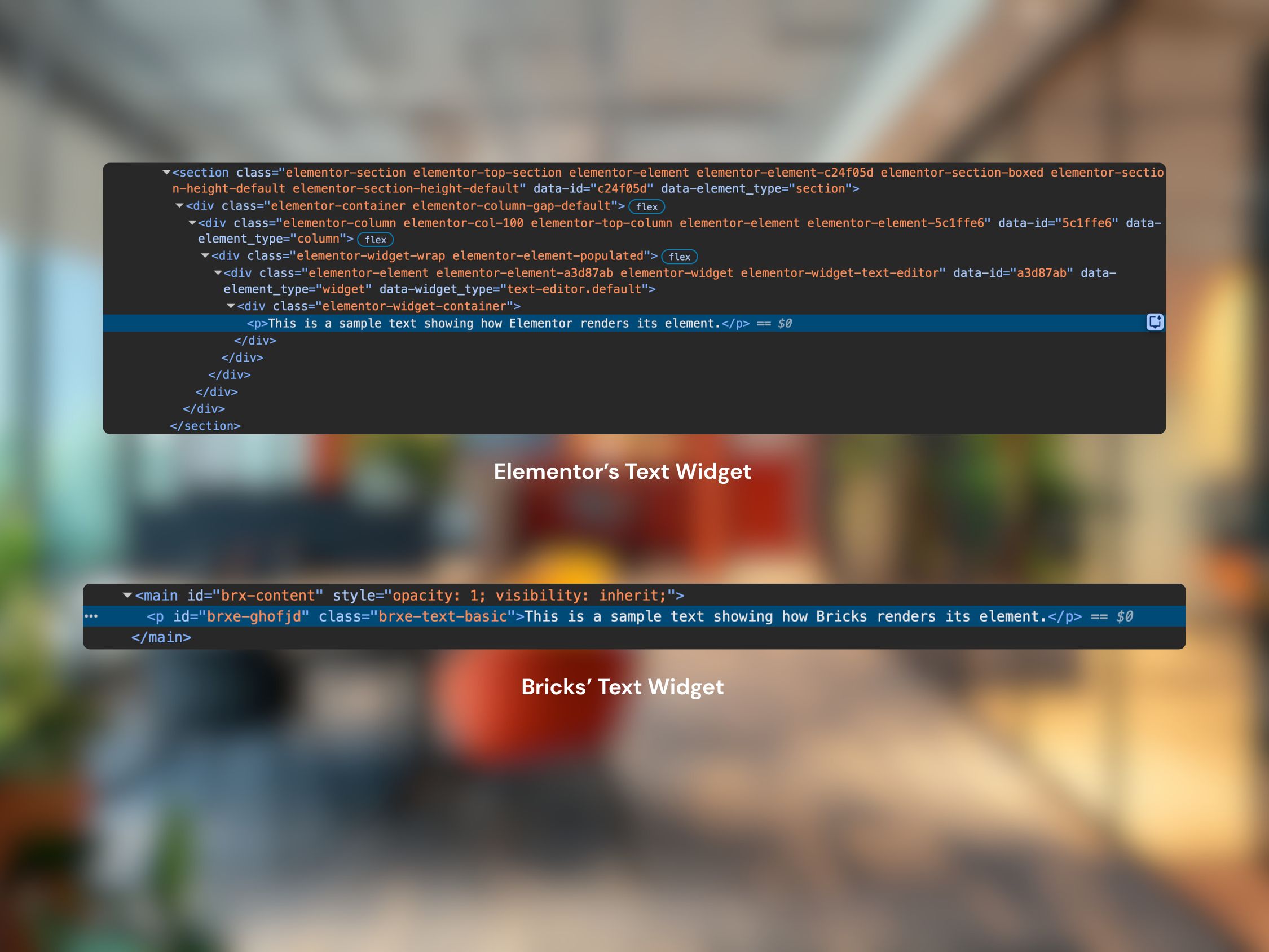
With Elementor, you get a lot of extra HTML wrapping around that text. Divs inside divs, extra classes, all that stuff. With Bricks, it’s just the text. No extra wrappers. No unnecessary HTML. Now, I get it. For a lot of people, this doesn’t really matter. Your site will work fine either way. But for me as a developer, this is kind of a big deal.
When your HTML is cleaner, your site loads a bit faster. There’s less bloat. And when I need to build custom layouts or add complex animations, I’m not fighting against a bunch of markup I didn’t ask for. It feels more like building a site from scratch, which I like.
I’m not saying other builders are doing it wrong. They have their reasons for adding those wrappers. But Bricks’ approach just feels cleaner to me, and I’ve noticed it makes a difference when things get complicated.
Conditional Logic
This is one of those features that doesn’t sound exciting until you actually need it. You can show or hide elements based on all kinds of conditions. User roles, post types, custom field values, device types, and more. It saves me from writing PHP functions for basic “if this, then show that” logic, which honestly makes my life easier.
Let me give you a real example. Say you want to show a different header on certain pages. You could set up a simple custom field (like a switch or dropdown) on your page editor. Then in Bricks, you add a condition that says “if this field is true, show this header. If not, show the other one.“
I’ve used this for things like:
- Showing special content only to logged-in users
- Displaying different calls-to-action based on post categories
- Showing admin-only notices that regular visitors don’t see
Components
Since my old site was built with a Javascript framework, I got really used to working with components. Cards, blurbs, list items, all that stuff. Components are great because you can reuse them across your whole site. Build something once, use it everywhere.
Bricks used to let you create templates and reuse those, which was helpful. But components take it a step further. They can accept properties now, which means you can change specific values without rebuilding the whole thing.
Say you build a card component for team members. With the old template approach, you’d reuse the same card layout, but you’d have to manually update the content each time. With components and properties, you can set it up so the card accepts things like “name,” “job title,” and “photo” as inputs. Then when you use that component, you just fill in those properties and that’s it, you’ve got a new team member card with the same design.
It makes things way more flexible and honestly saves me a ton of time. I don’t have to copy and paste layouts and then hunt through each one to change the text and images. I just drop in the component and update the properties. If you’ve ever worked with React or Vue components, this will feel pretty familiar.
Query Loop
If you need to display lists of things like projects, products, users, or blog posts, Bricks has this feature called Query Loop that I use all the time. It’s actually pretty simple. You just activate a setting on any container, and that container becomes a loop. Then you build whatever you want inside it, and Bricks repeats it for each item in your query.
What I like about this approach is the flexibility. Other page builders usually give you a predefined grid or list layout that you can customize a bit. Which is fine for basic stuff, but it can feel pretty limiting. If you want to do something more custom, you end up writing a bunch of extra CSS or fighting with the layout. With Bricks’ Query Loop, you’re just building the layout from scratch inside the loop container. The loop just repeats whatever you put in there.
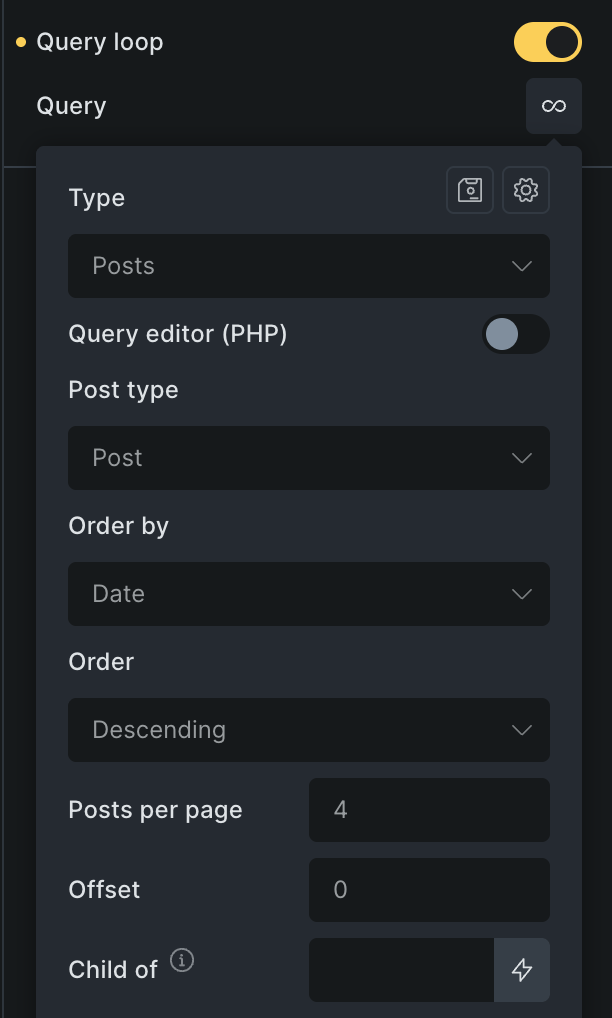
I remember building a custom project portfolio where each item needed a pretty specific layout with overlapping elements and custom hover effects. With Query Loop, I just built one item exactly how I wanted it, and Bricks handled the rest. It felt way more natural than trying to bend a predefined grid to do what I needed.
Popup Builder
I know popups are mainly used for lead generation and email signups, but I’m really glad the Bricks team included this feature built-in. With most other builders, you don’t get popups out of the box. You’d have to install a separate plugin, which means another thing to manage, update, and potentially slow down your site.
With Bricks, you can build custom popups right in the builder. No extra plugins needed. They load pretty fast from what I’ve seen, and you get full control over how they look and when they appear. It’s one of those things where you don’t realize how convenient it is until you need a popup and it’s just… already there. No searching for plugins, no comparing options, no extra setup. You just build it.
For me, it’s less about the popups themselves and more about having one less thing to worry about.
You Can Customize Pretty Much Anything
Most of the styling stuff you’d want to do is already built into Bricks. You don’t have to write custom code for every little detail (though you can if you want).
Want a soft shadow on a box? It’s in there. Need to adjust how something transforms or you want opacity? It’s easy to find. Want to use CSS filters? They included it.
What this means for me is I can build custom designs without constantly jumping between the builder and my code editor. Most of what I need is right there in the interface, which honestly saves me a lot of time.
WooCommerce Without the Headaches
If you’re building an online store, I’ve found that Bricks handles WooCommerce pretty well. You’re not stuck with how WooCommerce looks out of the box. You can design custom product pages, shop layouts, cart pages, even checkout if you want. Everything can actually match your brand instead of looking like every other WooCommerce store out there.
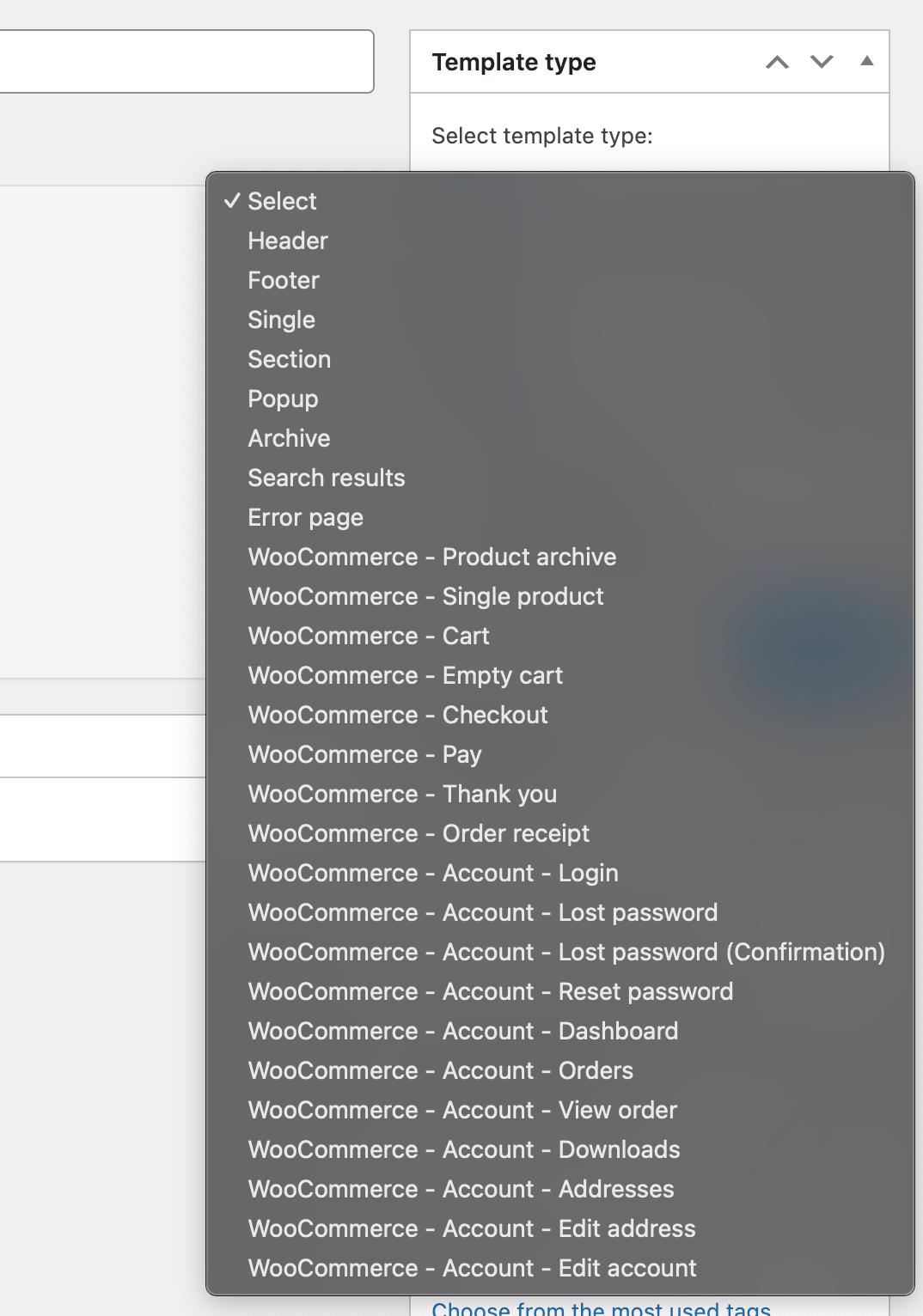
I recently integrated a booking system into a website powered by WooCommerce and Bricks, and I was honestly surprised by how flexible it was. I was able to create completely custom product layouts without having to mess with PHP template files, which was a relief.
For example, on this recent project, the single product pages needed a pretty specific layout. The product details had a bunch of dynamic data that changed based on different conditions, like showing different specs for different product types, hiding certain sections if fields were empty, that kind of thing.
With Bricks, I just built it visually. The dynamic data features let me pull in all the custom fields I needed. The conditional logic let me show and hide things based on what made sense. And the Query Loop made it easy to display related products or variant options however I wanted.
The other thing I appreciated was that the store still felt fast. I’ve worked on WooCommerce sites before that got sluggish once you added products and a bunch of customization plugins. From what I can tell, Bricks keeps things pretty lean, so the performance holds up.
It’s not perfect for every WooCommerce situation. If you need really complex functionality or specialized features, you might still need some plugins. But for most standard stores, or even moderately complex ones where you mainly want control over design and layout, I think it works really well.
What Are The Downsides of Using Bricks?
I don’t want to make this sound like Bricks is perfect, because it’s not. There are some real drawbacks you should know about before you decide to use it.
It’s a Theme, Not a Plugin
This is probably the biggest thing to understand upfront. Bricks is a theme, not a plugin. That means you can’t just install it alongside your existing theme and start building. It replaces your theme entirely. It becomes the foundation of your whole site.
For some people and agencies, that’s a dealbreaker. I get it. If you’ve already invested time and money into a specific theme or a page builder, switching everything over to Bricks is a big decision.
For me personally, it wasn’t a problem. I actually prefer having one solid foundation instead of layering a page builder on top of a theme on top of WordPress. It feels cleaner to me, and I don’t have to worry about conflicts between the theme and the builder.
But I totally understand why this bothers people. If you want a builder that works with any theme, like Elementor or Beaver Builder do, Bricks isn’t going to work that way. You’re committing to it as your theme.
The Learning Curve Is Real
I need to be honest about this one too. This builder has a bit of a learning curve. The first time I opened it, I felt a bit overwhelmed. There are options everywhere. The interface kind of assumes you already know what things like margin, padding, flexbox, grid, and aspect ratios mean. If those terms are new to you, it’s going to feel confusing at first.
It wasn’t intuitive right away. I had to watch a few tutorials, read their documentations and poke around before things started clicking.
That said, if you’re already comfortable with basic web development stuff, you’ll probably pick it up faster.
The nice thing is, once that initial confusion passes, you’ll probably build sites faster than you did before. Just know you’ll feel a bit lost at the start. I think that’s true for any page builder, really. It’s just part of learning something new.
I Recently Became a Bricks Expert
Bricks recently launched Bricks Expert, which is where businesses and agencies can find developers who know the page builder well. The team actually review your work before approving you, so it’s not something everyone gets into.
I applied after building several sites with Bricks, though I wasn’t sure if I’d get in. But they reviewed my portfolio and work, and I got approved with my own Bricks Expert profile.
So if you need help with your website project and want to use Bricks, feel free to reach out.
Final Thoughts
Bricks has a lot more features I haven’t mentioned. I didn’t want this post to get ridiculously long. I’ve just focused on the ones I use most often and the features that, for me at least, really set it apart from other page builders.
Bricks feels like a tool made for people who care about structure, performance, and flexibility. I’m not saying other builders are worse. They’re just different and work better for different people. But for folks who want control without coding everything by hand, Bricks is one of the better options I’ve found. At least that’s been my experience.
It feels like it’s made for people who understand a bit about web development and want a tool that doesn’t oversimplify everything. If that sounds like you, I’d say give it a try. If you want something really simple and beginner-friendly, there are probably better fits out there.