As you know, I’m more of a WordPress guy, most of my projects and clients are using it, but there are times I get to work outside of it. Recently, I wrapped up a short website task for a healthcare practice based in Australia, and it was built on Wix. I wasn’t the one who started the project, I just came in to help with some design refinements like mobile responsiveness, content hierarchy, and overall design consistency.
Anyway, while working on it, one of my frustrations with Wix showed up. Sections don’t always behave the way you’d expect. The desktop version looked fine but when you switch to mobile, there were broken layouts, but what really frustrated me were these unnecessarily large gaps (basically blank space), between sections.
Now, the tricky part was working out how to troubleshoot which section was responsible for that space between sections. In this post, I’ll share the quick method I used to find that empty gap and remove it, hoping this helps someone with the same problem.
What is a Strip in Wix?
A strip is a full-width block of a Wix page, from the older Wix Editor. Wix now also has sections, and Wix Studio only uses sections. They look alike on the page, but they aren’t the same feature, so check which one your site uses.
An empty-looking strip can still take up height, and that is usually how unexplained white space like this happens.
You know what’s funny from a developer’s perspective? Fixing spacing issues is not supposed to be complicated when it comes to troubleshooting a web page. Fixing overflowing content or sections is supposed to be the harder one. But in the case of Wix, I guess that’s one issue someone always experiences.
Also, please note that there are other ways like double clicking the handle or checking the page structure (I’ve tried those btw). But sometimes you can’t see or pinpoint everything all at once especially if you have a very long page.
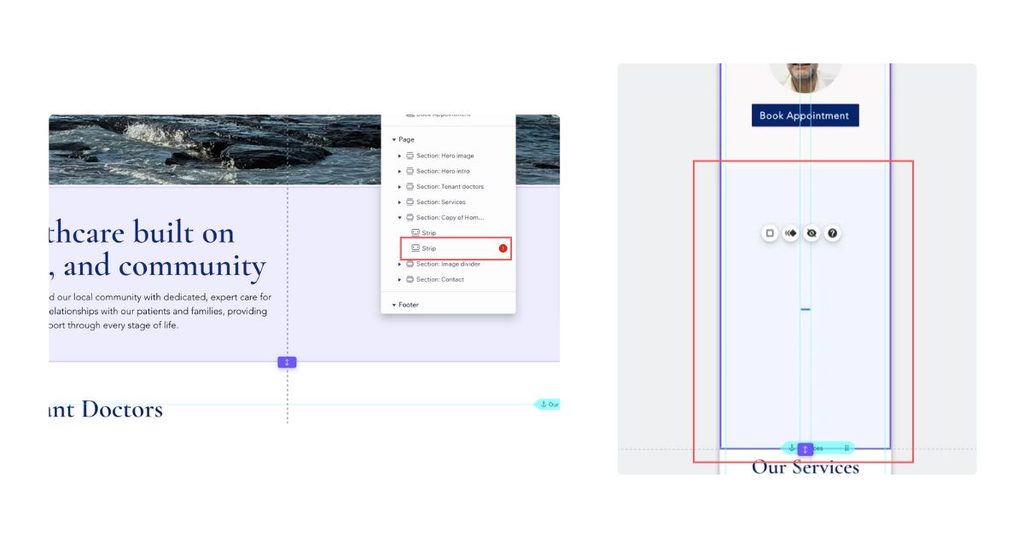
In my case, the extra space showed up below the footer, and I initially thought the footer was the problem. But it turned out a strip further up the page was pushing that gap down. So if you’re trying to remove space below the footer in Wix, the cause might not be where you think it is.
Anyway, this is just a quick method I used to find the gap (caused by a strip) and delete it. It’s just a simple three-step process.
Step 1: Duplicate the page
Before touching anything, the first thing I did was duplicate the page. This way, whatever I delete on the copy won’t affect the original. It also helps because once you find the problematic strip or widget, you still have the original layout to reference.
Step 2: Delete the sections one by one
On the duplicate, I started removing sections one at a time. After each one, I switched to mobile preview to check if the gap was still there. That’s the key here, you have to check mobile every time because on the desktop, everything looks fine.
After a few tries, the gap finally disappeared. The last section I removed was the one causing it. Turns out it was a strip that looked completely empty on desktop but was still taking up space on mobile. Not obvious at all.
Step 3: Remove it from the original page
With the culprit found, I went back to the original page and removed that same strip. Checked mobile preview one more time to confirm the gap was gone. After that, the duplicate can be deleted since it already served its purpose.
Yes, I know, not the most elegant fix, honestly. But it works without guessing. Sometimes the quickest way to find a problem is to just take things away one at a time. Also, if you have that overflowing content or section issue I mentioned a while ago, you can apply this method as well ;D
Have you run into the same spacing issue on Wix? Or maybe a different approach that worked for you? Let me know in the comments, I’m curious how others deal with it.